Organizer: Manage and Review Your Tasks
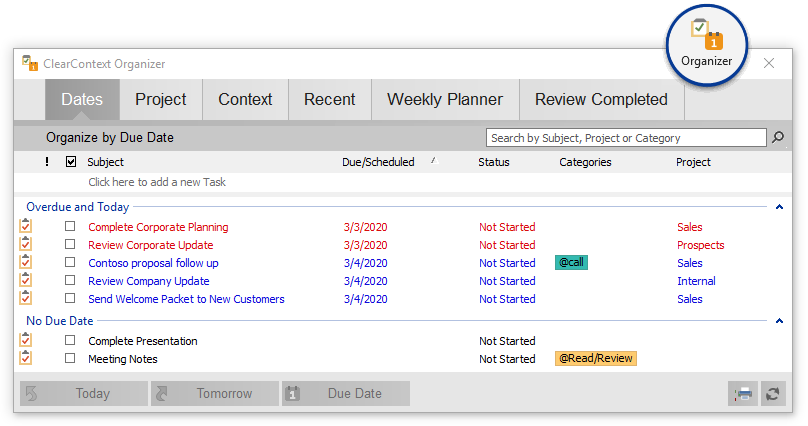
The ClearContext Organizer provides an efficient way to assign due dates, projects and categories and a central place to review your work.
 Open the Organizer by pressing Organize Tasks on the
Summary Dashboard, the Organizer icon on the
Detail Dashboard or select it from the ClearContext tab/menu.
Open the Organizer by pressing Organize Tasks on the
Summary Dashboard, the Organizer icon on the
Detail Dashboard or select it from the ClearContext tab/menu.
The organizer is divided into six tabs to quickly sift through your data - Dates, Project, Category, Recent, Weekly Planner and Review Completed

Throughout the organizer:
- Right click selected tasks to act on them (Mark Complete, Change Due Date, Change Start Date, Change Priority, Mark Next Action or Assign Project).
- Click on a list header to sort tasks. Grouping will not change when you sort - tasks will be sorted within the tab's defined groups.
- Click on a group header to select all tasks in that group.
- Click on the up arrow to the right of a group header to hide the group items.
- Select Options to organize tasks by Start Date or Due Date.
-
The following formatting is applied to tasks:
- Tasks with a Start Date of today are underlined.
- Tasks with a Due Date of today are highlighted in blue.
- Tasks with an overdue Due Date are highlighted in red.
- Tasks marked as Next Action show a small arrow in the priority field.
Searching for Tasks or Appointments
In any view, items shown can be searched and filtered by typing into the search bar. Items will be searched on the subject, Project and Category fields. To exit search and view all items, press the escape key or click the X button by the search bar.
Adding or Editing Tasks
In any Organizer view, create new tasks on the fly by selecting the Click here to Add a new Task box above the list of existing tasks and typing in the task subject. To optionally set other attributes such as date, status, category or Project, tab or mouse click over to another field. Pressing the enter key, or clicking off the new task fields will save the new task and move it to the list of existing tasks. The escape key can be used to discard the new task.
Tasks can be edited in a similar fashion to creating tasks. By first selecting a task item to edit with the mouse, then clicking on the field to change, the task item will enter edit mode and can be saved and changed with the same method as adding tasks.
Dates
 The
Dates tab lets you quickly identify overdue tasks
and/or tasks with no due date so that you can reassign due dates in bulk.
Highlight the tasks that you want to reassign. Use the
buttons at the bottom of the window to assign the due date on the selected tasks to today, tomorrow or
to a due date of your choosing. When organization by Start Date is
selected, the Due Date button becomes a Start Date button.
The
Dates tab lets you quickly identify overdue tasks
and/or tasks with no due date so that you can reassign due dates in bulk.
Highlight the tasks that you want to reassign. Use the
buttons at the bottom of the window to assign the due date on the selected tasks to today, tomorrow or
to a due date of your choosing. When organization by Start Date is
selected, the Due Date button becomes a Start Date button.
Project
 View a list of all of your tasks by
Project Tasks
which have not been assigned Projects are listed at the top of the list.
Highlight the tasks you want to assign Projects to and select Assign Project
to assign via the Project Selector.
View a list of all of your tasks by
Project Tasks
which have not been assigned Projects are listed at the top of the list.
Highlight the tasks you want to assign Projects to and select Assign Project
to assign via the Project Selector.
Category
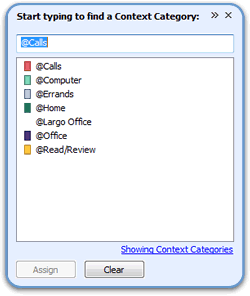
The Category tab works in the same way as the Project tab. Assign a Context Category to tasks by pressing the Assign Category button at the bottom of the panel. The category list will only display contexts - categories with a special character (@, !, etc.) in front of the name. Mark a task as a !Next by pressing the Next Action button.
Recent
Use the Recent tab to view and organize tasks that have recently been created. This organization mode is effectively used with the QuickTasks feature. Once a number of tasks have been basically entered in through QuickTasks or through Outlook, the Recent mode allows you to easily see which tasks lack dates, categories or Project and efficiently assign those attributes.
Note: the same task may be repeated under different groups, since it may meet the attributes of multiple group types. For example, when a task is first created, it may lack a date, category and Project and be listed under the groups No Date, No Category and No Project.
Weekly Planner and Review Completed
Use the Weekly Planner tab to view upcoming tasks and appointments organized in weekly groupings. The Review Completed tab offers a similar view for prior activites so you can review the work you have completed.
The buttons across the bottom of the Organizer allow you to choose how far forwards/backwards in time the activities are shown and to drill down on your activities by Project or Category:

- The Project and Category buttons allow you to filter your list by an individual Project and/or and individual Category. When filtering by Project, enable Include Sub-Projects to see tasks from the current project (i.e. MainProject) plus all its sub-projects (i.e. MainProject/SubProject).
- Click the calendar icon to show/hide appointments.
- Use the Weeks buttons to select the number of weeks you want to view in your list.