Toolbar Management: Configure ClearContext to Work the Way You Do
There are a number of options to customize the toolbar to best fit the way you work:
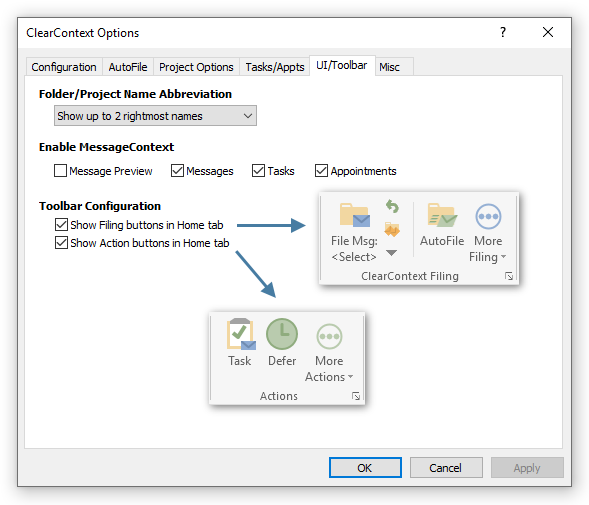
- Folder/Project Name Abbreviation: Choose how ClearContext abbreviates the display for Project/Folder names in the toolbar. For example, with the default option of showing the 2 right most names, the folder Client/Contoso/Billing would be shown as ../Contoso/Billing. When the mouse pointer is held over the filing button, a mouse over window will display the full unabbreviated name.
- Enable MessageContext: Choose whether the Outlook window integrated MessageContext is enabled for the listed types of windows.
- Toolbar Configuration: Select whether the Filing and Action sections should be shown in the main Home tab in the Outlook ribbon toolbar.
Toolbar Customization
-
The ClearContext tab of the Outlook window lists all available ClearContext functions. A subset of frequently used ClearContext
features are also listed in the default Home tab under the ClearContext Filing and Actions sections.
The home tab buttons can be customized to add or remove most available functions:
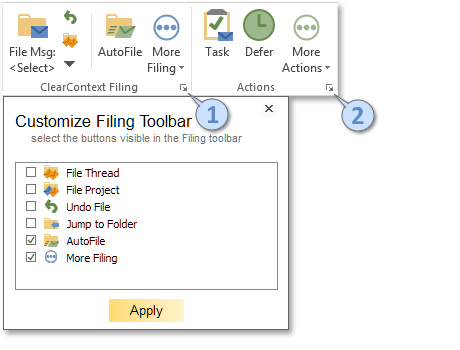
- Opens the Filing customization window to select which Filing buttons are shown
- Opens the Actions customization window to select which Actions buttons are shown