Summary Dashboard: Manage Projects in Outlook
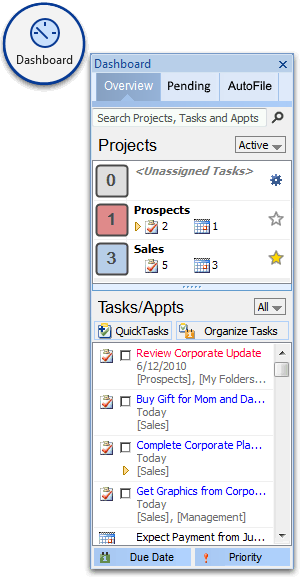
Divided into three areas - Search, Projects or Categories and Tasks/Appointments - the Summary Dashboard provides a control panel for your workday. Use the Dashboard button on the main toolbar to open and close the Dashboard sidebar.
Search
Located at the very top of the Dashboard is a search entry field. Typing a search term into this field will filter and find Projects, Tasks and Appointments relevant to the search term.
Projects or Categories
Below the search field of the Dashboard, switch between Project and Context Category views of your tasks via the menu at the top right.
 Projects
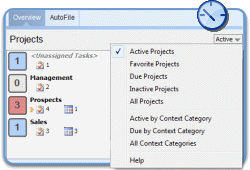
The Projects pane shows a summary of your Projects. Large status indicators to the left of each project give a count of due tasks.
- The count to the left of each project indicates the number of overdue, due and in progress (start date of today or earlier) tasks for the project. The count is highlighted in blue if there are any tasks due today and red if there are any overdue tasks.
- Mark important or current Projects as a Favorite by pressing
the star icon
 to the right of a project name.
 - Use the view menu to filter your project list:
- Active Projects shows projects with tasks assigned to them plus all favorite projects.
- Favorite Projects displays only projects marked as favorites.
- Due Projects shows projects with tasks that are due today or earlier.
- Inactive Projects shows projects that have no tasks or appointments
- All Projects opens a search box. Type a Project name in the filter to narrow the list of Projects down.
- A small yellow arrow to the left of the Task count indicates that a task in the Project has been marked as a Next Action.
- Click on a Project in the list to open the Detail Dashboard window.
- Click on <Unassigned Tasks> to open the ClearContext Organizer and view tasks without Project assignments.
 Context Categories
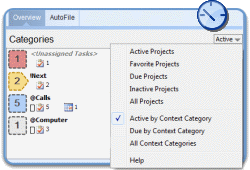
Like the Project summary, the Context Category summary shows a summary of all of your Contexts - categories with a special character (@, !, etc.) in front of the name. Large status indicators to the left of each category give a count of due tasks.
- The count to the left of each category indicates the number of overdue, due and in progress (start date of today or earlier) tasks for the category. The count is highlighted in blue if there are any tasks due today and red if there are any overdue tasks.
- The count to the left of the !Next category is highlighted in yellow and indicates the number of due and overdue tasks that have been marked as Next Actions.
- Use the view menu to filter your project list:
- Active by Context Category shows categories with tasks assigned to them.
- Due by Context Category shows all categories with tasks that are due today or earlier.
- All Context Categories opens a search box. Type a category name in the filter to narrow the list of categories down.
- Click a Category in the list to open the Detail Dashboard window.
- Click <Unassigned Tasks> to open the ClearContext Organizer and view tasks without Category assignments.
Tasks/Appointments
This pane lists all of your tasks and appointments. Quickly act on tasks from here:
- Check a task to mark it complete.
- Highlight multiple tasks to act on them at the same time.
- Use the Date button to reassign a date to the currently selected tasks. This can switch the Due Date or the Start Date depending on which Task Organization option you have chosen.
- Use the Priority button to elevate the priority of the currently selected tasks.
-
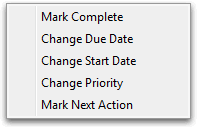 Right click tasks to act from the context menu.
You can Mark Complete, set the Start Date or Due Date, Change the
Priority and Mark as Next Action from here.
Right click tasks to act from the context menu.
You can Mark Complete, set the Start Date or Due Date, Change the
Priority and Mark as Next Action from here. - Double-click a task or appointment to open it.
Tasks are formatted as follows:
- Tasks with a due date of today are highlighted in blue.
- Tasks with an overdue due date are highlighted in red.
- Tasks with a start date of today are underlined.
- Tasks designated as Next Actions have a small arrow to the left of the Subject.
Filter the list from the Project/Category list:
- When the mouse is hovering over a Project or Category in the upper list, the filter button
 will be visible
 - When the filter button is clicked:
- the items list will filter by the Project or Category selected
- The header of the item list will show the filter icon and display the Project or Category selected
- To exit out of the filtered list, click the same filter button again or the X button in the item list header
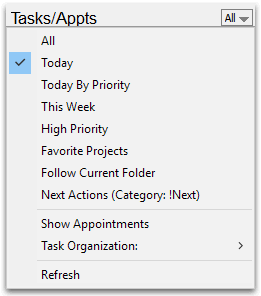 Filter the list from the view menu:
- See All tasks and appointments, items with a due date of Today or items with a due date This Week.
- Today by Priority shows all items due today, ordered by task priority.
- Favorite Projects displays items from projects that you have marked as a favorite in the Projects list.
- Follow Current Folder filters the items by the Project associated with the current folder, if any. If the current folder is not associated with a Project, like the Inbox, then the item list shows the All view.
- Next Actions shows only those tasks that have been designated as a Next Action. These tasks have a category of !Next assigned to them.
- Deselect Show Appointments to remove appointments from the list in this pane.
- Switch between organization by Due Date and organization by Start Date via the Task Organization menu. This will also switch the date button at the bottom of the panel between Due Date and Start Date.
Create and manage new tasks with QuickTasks and the Organizer at the top of the pane:
-
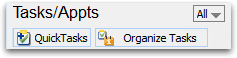 Click
the QuickTasks button to open the QuickTasks window for task
entry
Click
the QuickTasks button to open the QuickTasks window for task
entry - Click the Organize Tasks button to open the Organizer window to manage tasks
Project Alert
When the Dashboard window is not enabled and if any Project items are due or overdue, A Project Alert window will pop up shortly after Outlook has been launched. The Project Alert window will display any due and overdue Projects and their tasks.
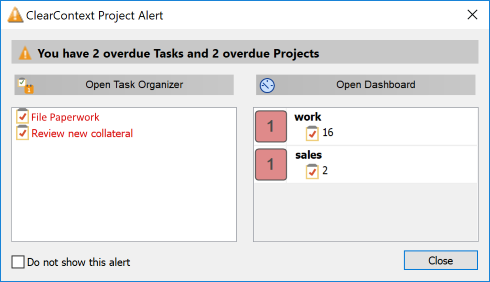
If the alert window is not desired, the Do not show this alert option can be selected before pressing the close button. The Project Alert can be re-enabled in the ClearContext->Options->Project Options screen.
Use Next Actions to quickly mark a Task for action
When there are large numbers of Tasks pending, it can be helpful to flag the ones you plan to work on right now. The Next Action shortcuts let you use the built in ClearContext Context Category to easily move Tasks in and out of your list of Tasks you are focusing on.