User Guide: Organize Inbox, Manage Projects and Improve Email Effectiveness in Outlook
Following installation you will note that ClearContext has added toolbars and a sidebar within Outlook. These features allow you to quickly & effectively manage your email, tasks and Projects.
For an introduction to ClearContext, we first recommend stepping through our getting started page.
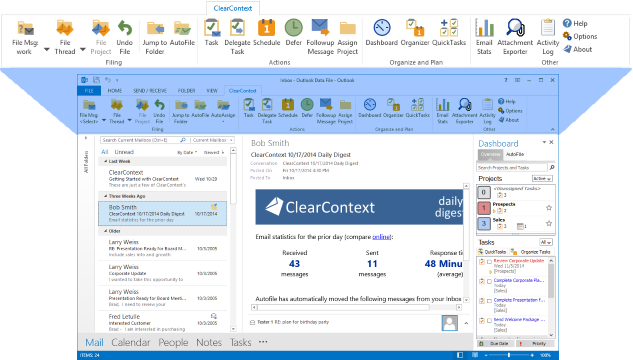
The ClearContext Inbox
Immediately following setup, ClearContext has automatically filed your bulk email and analyzed your email history to provide relevant filing suggestions. Key features include:
- One-click filing - ClearContext suggests folders
for filing based on email history. Press the
file button to accept the suggestion or the
arrow next to it to see more suggestions.
- Convert email to action - When using ClearContext, create a task or appointment from an email with a single click. Assign projects to them and view your work by project in the Dashboard.
- Schedule your email - Use Defer to snooze email out of your Inbox for later, Followup reminds you if you haven't received a response to emails you have sent
- AutoFile - ClearContext has a built in library of filing rules that automatically move bulk email out of your Inbox and provide a daily digest summary of those emails. Click the AutoFile button to create your own filing rules, or view the AutoFile tab in the Dashboard to review filed messages and edit filing settings.
Select the topics to the left for details of each ClearContext feature. If you are implementing GTD in Outlook, see our GTD with ClearContext page for additional reference.